Why You Might Need to Convert HEIC to PDF on iPhone
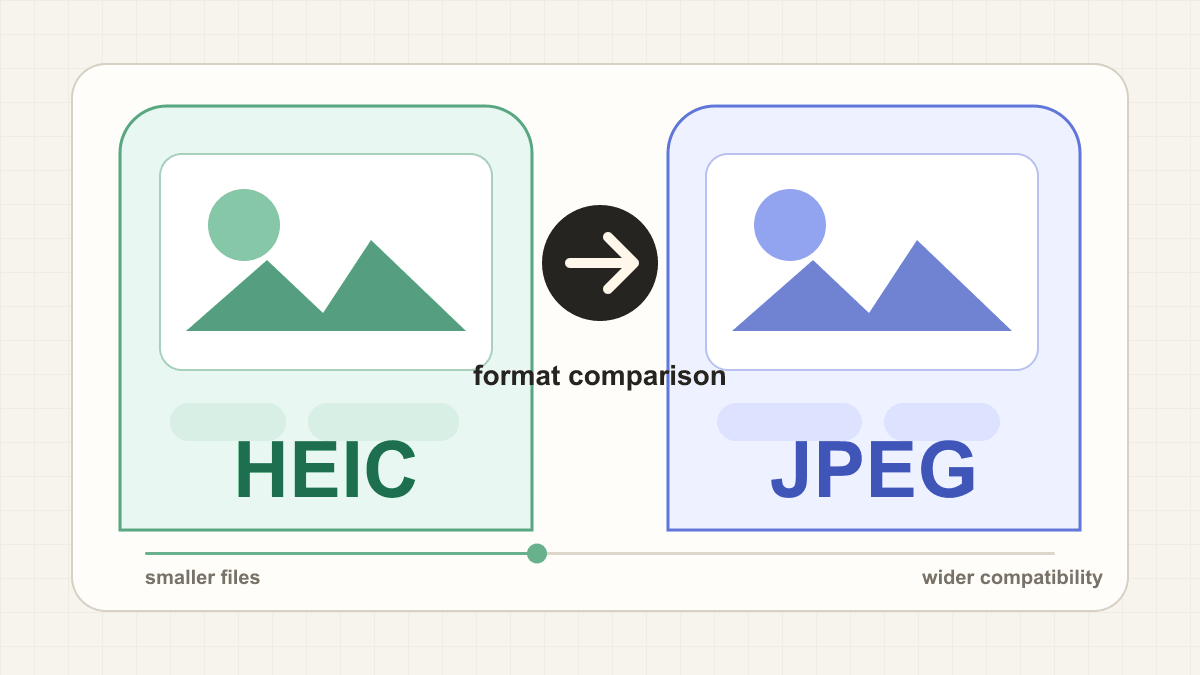
By default, many modern iPhones save camera photos as HEIC, Apple's high-efficiency image format, unless Camera is set to Most Compatible. For viewing and sharing within the Apple ecosystem, HEIC works seamlessly. But when you need to email a signed document, submit a form online, print a receipt, or archive important records, a PDF is the standard format everyone expects.
The catch: the Photos app does not offer a visible one-click way to convert HEIC to PDF on iPhone. The capabilities are there — spread across the Files app, the Share sheet, the Print menu, and the Shortcuts automation system — but none of them are labeled "HEIC to PDF." You either need to know where to look or use a purpose-built tool.
This article walks through the main options for turning HEIC photos into PDF files on iOS: using the Files app, setting up a Shortcuts automation, or opening a browser-based converter in Safari. Each method has different strengths, and the right choice depends on whether you are converting one photo occasionally or handling bulk conversions as part of a regular workflow.
Option 1: Use the Files App (Built Into iOS)
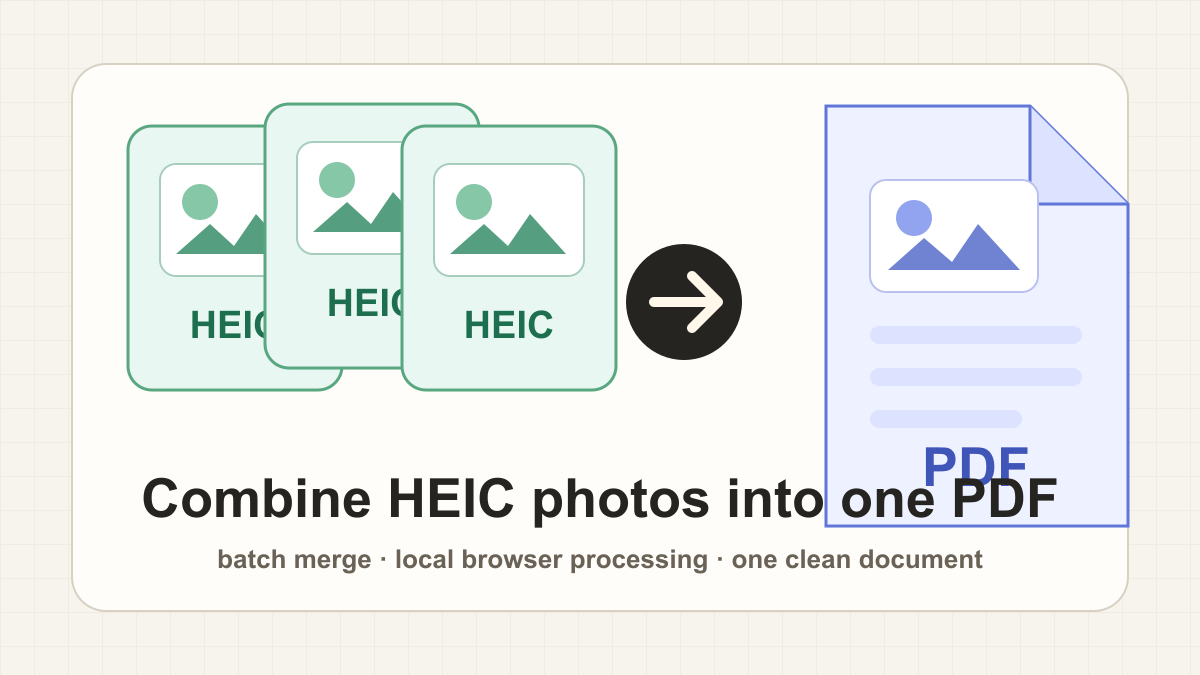
If your HEIC photos are already saved in the Files app — for example, after downloading from a cloud service or transferring from an SD card — iOS provides a straightforward way to create a PDF from them. Select one or more images, tap the share icon, and choose Create PDF. The system generates a single PDF document from the selected photos, arranged in the order you selected them. No app install needed, no extra steps — the feature is built into iOS, as documented in Apple's Files guide.
This method works well for quick, occasional use, but it comes with practical constraints. You cannot select photos directly from the Photos library; they must already reside in the Files app. If your images are only in Photos, you need to save them to Files first, which adds a step before you can convert HEIC to PDF. Batch support exists — selecting multiple photos creates a single multi-page PDF — but you will not find controls for page size, margins, orientation, or output quality. The page order is fixed to your selection order, and rearranging pages after creation is limited to basic drag-and-drop within the preview.
On older iOS versions or institutionally managed devices, file operation behavior may differ, and the Create PDF option might not appear in every context. On newer iOS versions, Preview may also offer image-to-PDF export options, but availability and workflow can vary by iOS version. For users who occasionally need to turn a single HEIC photo into a PDF and already work within the Files app, this method is adequate. For anything beyond that — especially if you need to merge several photos into one document with more control over the output — it may feel limiting. If merging is your main goal, you may want to combine multiple HEIC photos into one PDF with a tool that gives you full control over page settings.
Option 2: Use Shortcuts (Automation on iOS)
iOS Shortcuts lets you build a custom automation that selects photos from your library, converts them, and saves the result as a PDF — all triggered from the Share sheet or the Shortcuts app. Once configured, the shortcut can process multiple photos in a single run, making it a practical option if you regularly need to turn HEIC photos into PDF on your iPhone without repeating manual steps each time.
The tradeoff is the setup. Shortcuts is a flexible automation tool, but creating a HEIC-to-PDF workflow from scratch requires familiarity with its action library and logic builder. You need to chain together actions for photo selection, format conversion, and file output — and test that the flow works reliably across different image counts and file sizes. A typical shortcut would start with selected photos, use a PDF-making or file-conversion action, then save or share the resulting file. Users who have not worked with Shortcuts before may find the learning curve steep.
This approach suits users who already use Shortcuts for other tasks or who convert HEIC photos to PDF frequently enough that building the automation saves real time. For occasional one-off conversions, the configuration effort may outweigh the benefit. If you prefer a faster path that handles both single and batch conversions without setup, a browser-based tool may be a simpler alternative.
Option 3: Browser-Based Tools in Safari (No App Install)
The third option is opening Safari and using a browser-based converter that processes files locally on your iPhone. These tools work entirely in the browser: open a page, select your HEIC photos, configure settings, and download the PDF. No app install, no account registration, and — when the tool uses client-side processing — no files ever leave your device.
Browser-based local converters offer the most complete feature set of the three approaches. You can select multiple HEIC photos at once, merge them into a single multi-page PDF, and rearrange the page order by dragging thumbnails. Settings for paper size (A4 or Letter), margins, and orientation are available before conversion, and a quality slider lets you balance file size against output fidelity — compact enough for email or high-resolution for archiving and printing. Processing runs entirely in the browser using WebAssembly and client-side JavaScript, so your photos stay on your device throughout the conversion.
Here is how the three methods compare:
| Method | Install needed | Batch support | Privacy | Setup effort | Recommended |
|---|---|---|---|---|---|
| Files App | No | Limited | Local | None | ⭐⭐ |
| Shortcuts | No | Yes | Local | Medium–High | ⭐⭐ |
| Browser-based tool | No | Yes | Depends on tool | None | ⭐⭐⭐ |
The Files App batch support lets you select multiple photos and create a single PDF, but page ordering, size, margins, orientation, and quality controls are not available — the output is whatever iOS generates by default.
The main limitation of browser-based tools is that you need an internet connection to load the tool's page initially. Once loaded, the conversion itself runs locally and does not require ongoing connectivity. For most users with a data plan or Wi-Fi access, this is a minor constraint compared to the flexibility gained.
When you are ready to try the browser-based approach, open the converter in Safari — select your photos, adjust the settings, and download the PDF in seconds.
Frequently Asked Questions
Can I convert HEIC to PDF without installing an app on iPhone?
Yes. You can use the Files app (built into iOS), create a Shortcuts automation, or open a browser-based converter in Safari. All three methods work without installing any third-party app from the App Store.
Does iPhone have a built-in HEIC to PDF converter?
Not as a single dedicated feature, but iOS includes the capability through the Files app. Select HEIC photos in the Files app, tap the share icon, and choose Create PDF. The Print menu also offers a path: open the photo in Photos, tap Share, choose Print, then pinch outward on the preview to open it as a PDF and save it to Files. These built-in paths work, though they are not labeled as HEIC-to-PDF converters.
How do I convert multiple HEIC photos to one PDF on iPhone?
Select multiple HEIC photos in the Files app and choose Create PDF to merge them into a single document. For more control over page order, paper size, and margins, a browser-based tool gives you a drag-and-drop interface where you can arrange pages before exporting. If your main task is merging several HEIC photos into a single PDF file, the guide to combining HEIC photos into one PDF covers that workflow in more detail.
Why are my iPhone photos in HEIC format?
Apple introduced HEIC as the default High Efficiency camera format on compatible iPhones starting with iOS 11. HEIC (High Efficiency Image Container) stores photos at roughly half the file size of JPEG while maintaining equivalent or better image quality. This saves storage space on your device and in iCloud. You can change this setting under Settings > Camera > Formats and switch to "Most Compatible" if you prefer JPEG, though each photo will use more storage space.